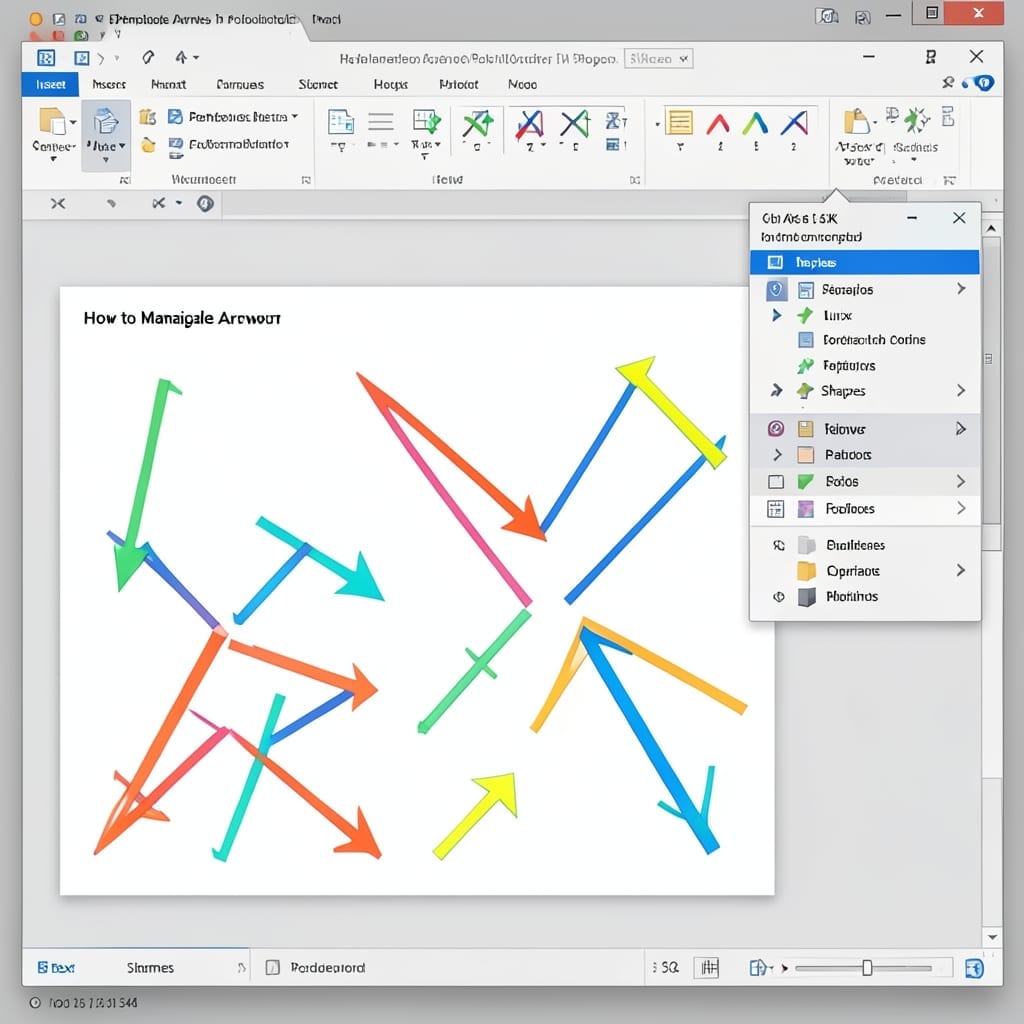
How To Manipulate Arrows In PowerPoint: Precision Alignment And Customization

How To Manipulate Arrows In PowerPoint: Precision Alignment And Customization

I spent years watching presentations where arrows looked like they were drawn by a sleep-deprived toddler. Precision alignment in PowerPoint isn’t optional—it’s what separates the pros from the PowerPoint casualties. The default arrow tools are just the starting point. With a few clicks, you can transform them from generic to pixel-perfect, adjusting curvature, weight, and … Read more

Which of the Following Is a Transition Effect That Seamlessly Changes an Object From Slide to Slide: Morph Explained

💥 Quick Answer The Morph transition in PowerPoint smoothly animates objects between slides, creating the illusion of seamless movement or transformation from one state to another. I’ve used this effect countless times to make presentations more dynamic without distracting the audience. Morph tracks identical objects across slides, interpolating their positions, sizes, and shapes to create … Read more

Why Would You Use a Bulleted List in a Slide Presentation: Clarity and Readability Benefits

💥 Quick Answer Bulleted lists in presentations break down complex information into digestible points, improving audience comprehension and retention while keeping slides clean and visually organized. I’ve seen this approach transform dense data into clear takeaways during my years at Microsoft. The human brain processes chunked information far more efficiently than walls of text. This … Read more

What Is the Quickest Option for Adding Internet Images to a PowerPoint Presentation: Drag and Drop Method Explained

💥 Quick Answer The fastest way is using drag and drop: simply drag an image from your browser directly into a PowerPoint slide. No saving or copying required. I love this method because it cuts out all the middle steps that usually slow you down. Instead of downloading, locating files, or dealing with copy-paste quirks, … Read more

What Version of PowerPoint Do I Have: Check in Seconds With This Method

💥 Quick Answer Open PowerPoint, click File then Account. Your version appears under Product Information as ‘Office 365’, ‘2019’, or similar year-based label. I’ve found this method works across Windows, Mac, and even the web version. The Product Information section is the most reliable spot, as it clearly shows whether you’re using a subscription-based Microsoft … Read more