Remote work offers flexibility but exposes you to cyber threats. These 10 security best practices—backed by real-world incidents—will help you lock down devices, accounts, and networks before hackers strike.
Multi-Factor Authentication for Every Account
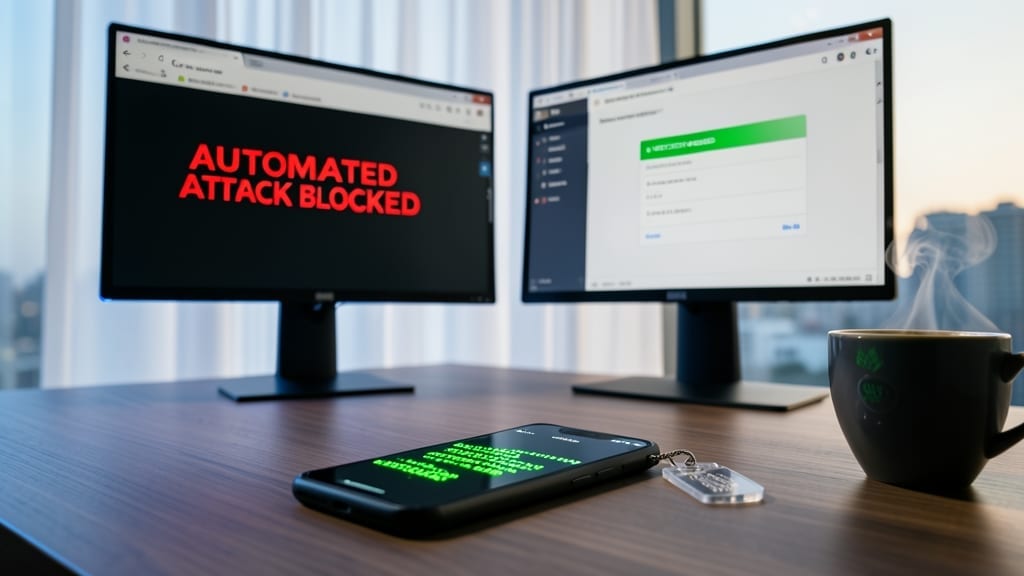
Automated attacks are the #1 way hackers breach accounts—but multi-factor authentication (MFA) blocks 99.9% of them with just a few extra seconds of effort. Most breaches start with stolen passwords, and MFA acts as your first line of defense by requiring a second verification step, like a code from an app or a fingerprint scan.
Enable MFA on email, banking, and work accounts first—these are prime targets. Services like Google Authenticator, Authy, or hardware keys (like YubiKey) offer seamless integration. Even SMS-based codes are better than nothing, though app-based or hardware tokens are far more secure. The best part? Most platforms now offer zero-config setup in under a minute.
This is non-negotiable for remote workers, whether you’re freelancing or managing a team. Start with your most critical accounts today—your future self will thank you. ⚡
Virtual Private Network on Public Wi-Fi
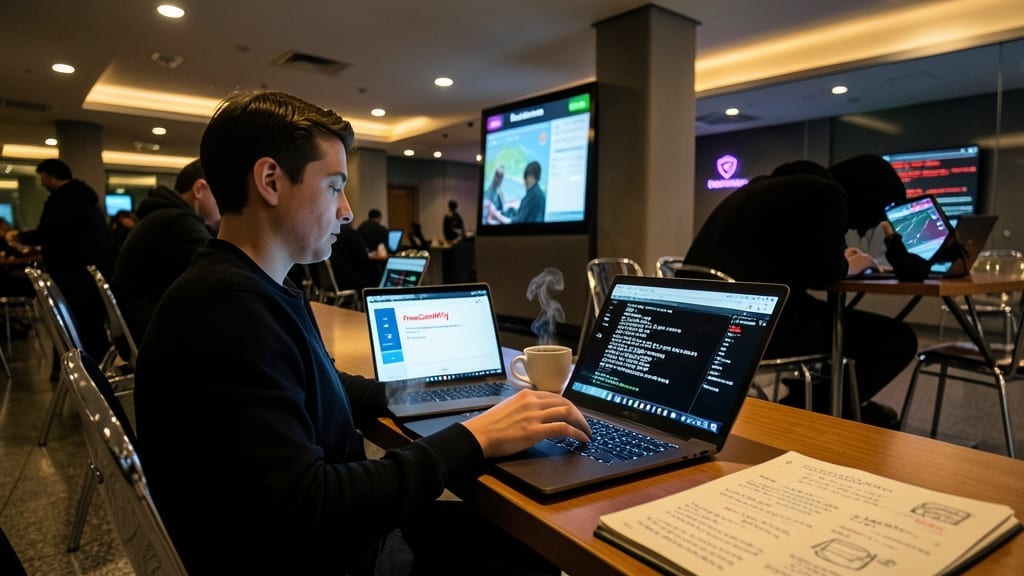
Public Wi-Fi at your favorite café or airport isn’t just convenient—it’s a hacker’s playground. Without a VPN, your unencrypted traffic becomes visible to anyone with basic tools, making sensitive data like passwords and emails prime targets for interception.
Services like ProtonVPN or NordVPN route your connection through encrypted servers, masking your IP and blocking snoopers. Look for OpenVPN or WireGuard protocols—they’re battle-tested against man-in-the-middle attacks. Even free tiers (e.g., ProtonVPN’s 500MB/day) offer enough protection for casual use, while paid plans unlock unlimited bandwidth and server locations.
Remote workers, freelancers, and travelers should treat VPNs as non-negotiable—especially when accessing work emails or financial sites. One click turns a risky network into a secure tunnel. ⚡
Password Manager with Strong Unique Passwords
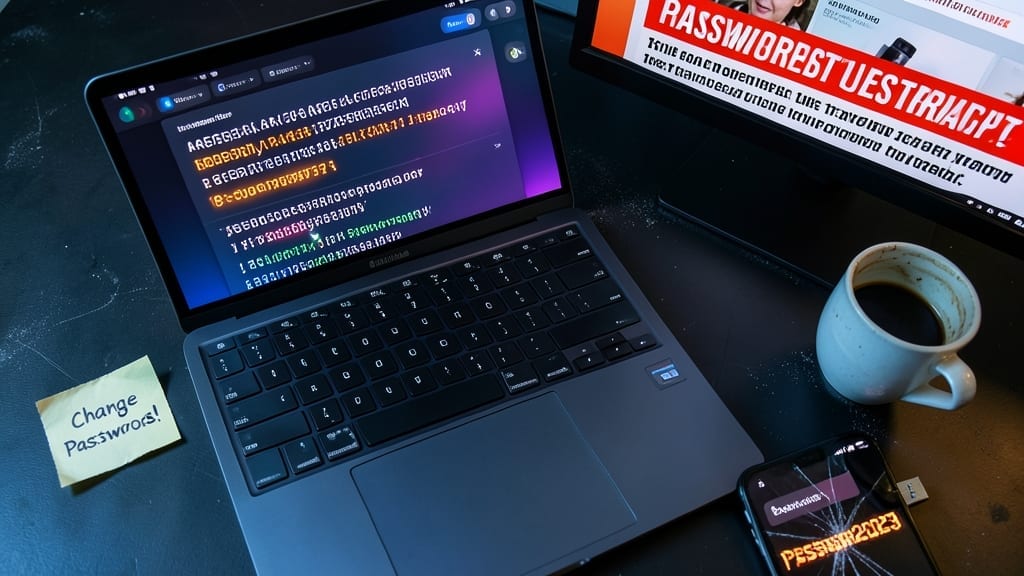
Your weakest security link might be staring you in the face—literally. Reusing passwords like “Password123” or “qwerty” is the #1 way hackers crack into accounts after data breaches. A password manager flips the script by auto-generating 16+ character passwords with symbols, numbers, and mixed case, making brute-force attacks impossible.
Tools like Bitwarden or 1Password create unique passwords for every site, remember them securely, and even monitor the dark web for leaked credentials. The zero-config sync across devices means you never have to remember a master password—just enable biometric login. For remote workers juggling work and personal accounts, this eliminates the “I’ll reuse this password” temptation entirely.
This is non-negotiable for anyone with more than three accounts. Freelancers, developers, and even casual users benefit most—especially when paired with MFA (the previous item). Your digital life deserves a vault, not a sticky note. ✨
Endpoint Detection and Response Software
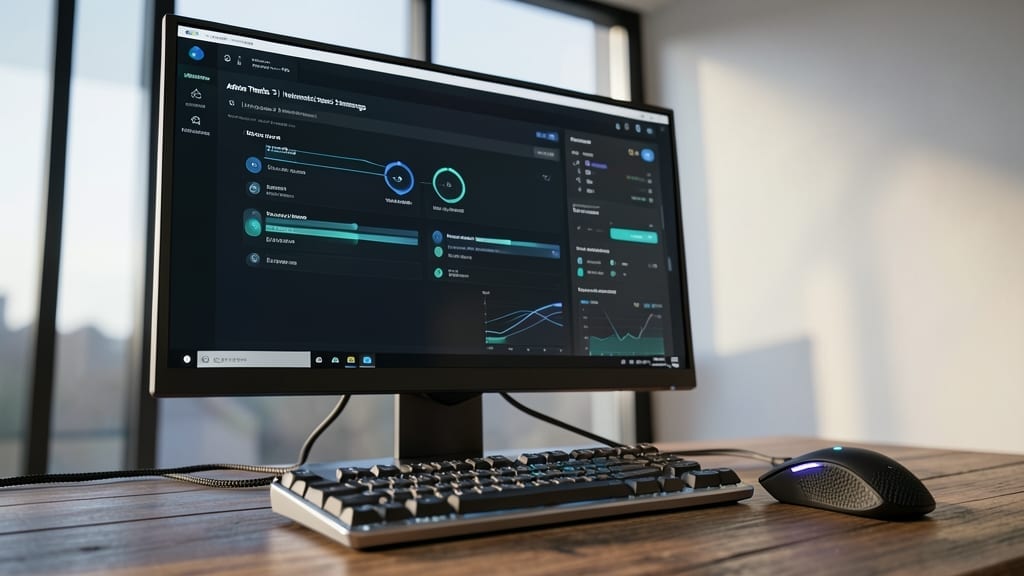
Ransomware attacks don’t just happen—they’re often stopped before they start. Endpoint Detection and Response (EDR) software acts as a silent sentinel on your Windows or Linux workstation, analyzing behavior in real-time to block threats like file-encrypting malware before they execute.
Solutions like CrowdStrike Falcon or SentinelOne use AI-driven analytics to detect anomalies, such as unauthorized processes or lateral movement, with sub-second response times. They integrate seamlessly with existing security tools and provide detailed forensic reports if an incident occurs, ensuring you’re not left in the dark.
This is non-negotiable for remote workers handling sensitive data—think finance, healthcare, or even freelancers with client contracts. It’s the difference between a minor alert and a full-blown data breach. 💻
Secure Home Network Configuration
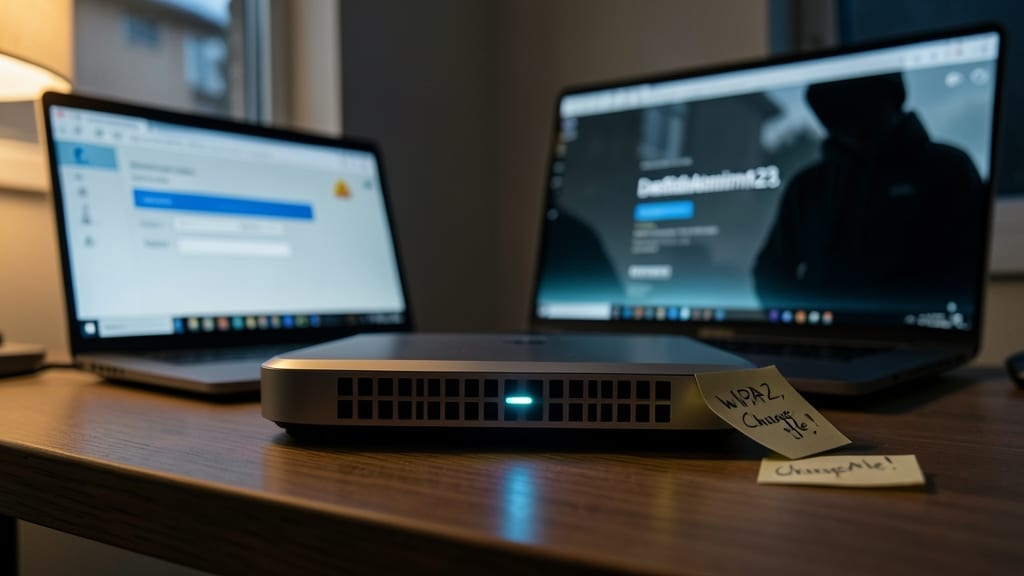
Your home Wi-Fi isn’t just a convenience—it’s often the weakest link in your remote work security. Default router passwords and outdated encryption like WPA2 make your network an easy target for neighbors, hackers, or even botnets.
Start by changing your router’s default admin credentials (check your router manual for instructions) and enable WPA3 encryption—the latest standard that thwarts brute-force attacks. Most modern routers (like Netgear Nighthawk or Google Nest Wi-Fi) support this with a simple firmware update. For extra security, create a guest network for visitors to isolate their devices from your work traffic.
This setup is perfect for remote workers who rely on stable, secure connections—whether you’re video conferencing or accessing company files. A few minutes of configuration now can save hours of headaches later. ✨
Regular Software Updates and Patches
Cybercriminals don’t wait for you to update your software—zero-day exploits often strike within hours of a vulnerability being discovered. Automating updates for your OS, browsers, and critical apps (like Zoom, Slack, or Microsoft Office) closes these gaps before attackers can weaponize them.
Modern tools like Windows Update, macOS Software Update, or third-party patch managers (e.g., Patch My PC for Windows) can handle this zero-config—just set a schedule and let them run silently in the background. For browsers, enable auto-updates in Chrome, Firefox, or Edge settings to patch flaws like CVE-2023-4863 (a recent Chrome zero-day).
This is non-negotiable for remote workers handling sensitive data, but even casual users benefit—90% of successful cyberattacks exploit unpatched software. Set it and forget it. ✨
Phishing Email Recognition Training
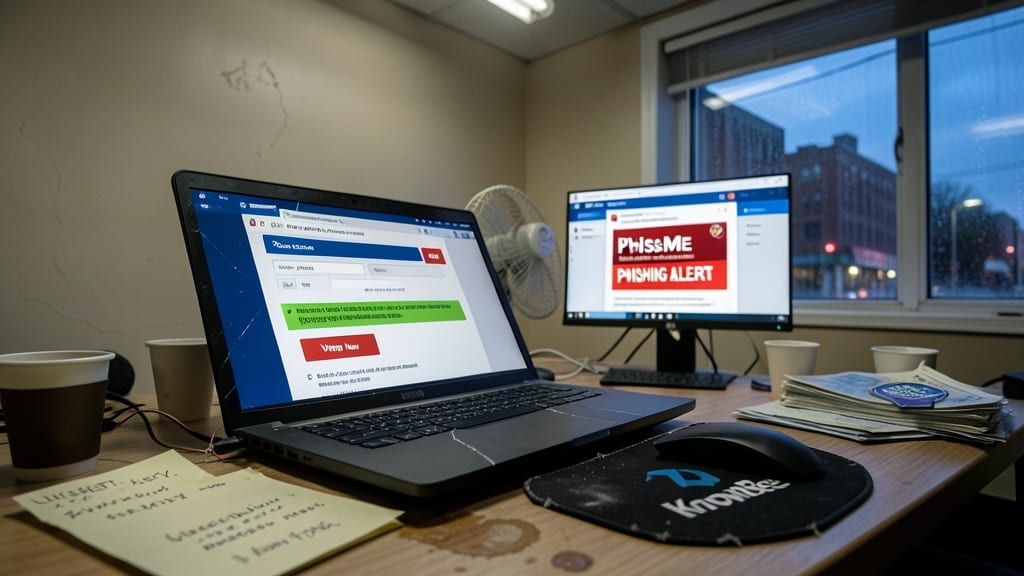
Cybercriminals don’t need fancy tools—they just need you to click. Phishing emails account for 90% of all cyberattacks, yet most people can’t spot the red flags. Training like KnowBe4’s Anti-Phishing Training or PhishMe’s simulated attacks teaches you to recognize fake login pages, urgent “verify your account” scams, and malicious attachments before they compromise your data.
These programs use realistic simulations (like spoofed “CEO emails” or fake software updates) to train your eye for URL mismatches, grammar errors, and suspicious sender addresses. Some even offer gamified quizzes to reinforce lessons, with progress tracking for teams. The best part? You’ll learn to think before you click—a habit that stops breaches before they start.
Perfect for remote teams or anyone handling sensitive data, this training is the human firewall your tech tools can’t provide. 💡
Cloud Storage with Encryption and Access Controls
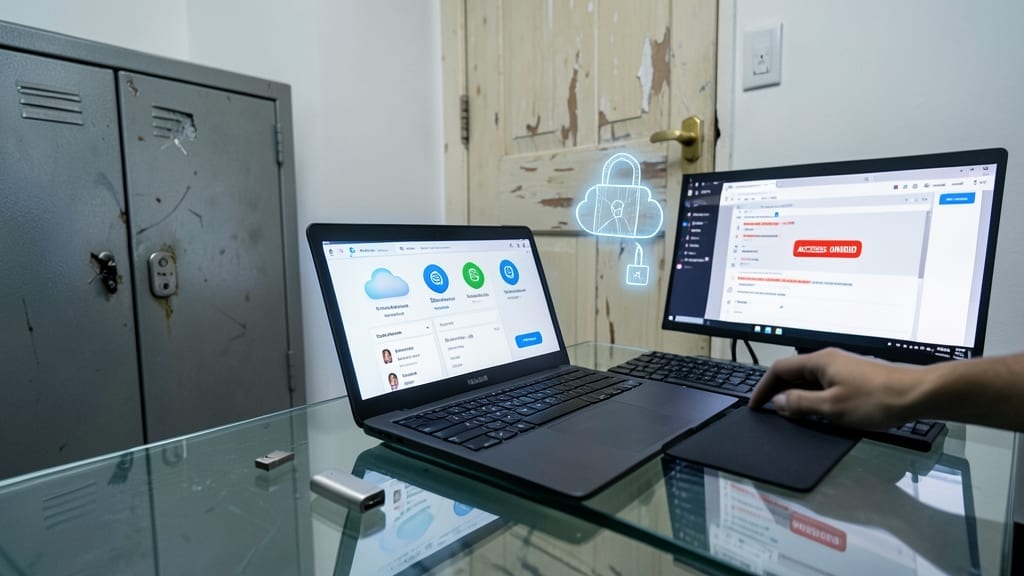
Storing sensitive work files in the cloud without proper safeguards is like leaving your front door unlocked—anyone can walk in. Services like Dropbox Business or Google Workspace offer end-to-end encryption and role-based access controls, ensuring only authorized team members can view or edit documents.
With granular permissions, you can restrict file access by department, project, or even individual roles (e.g., “view-only” for contractors). Features like automatic encryption at rest and in transit mean your data stays secure even if a server is compromised. Many platforms also integrate with single sign-on (SSO) for seamless yet secure access.
This is a must for freelancers, remote teams, and businesses handling client contracts, financial records, or proprietary data. 🌟
Physical Device Security Measures
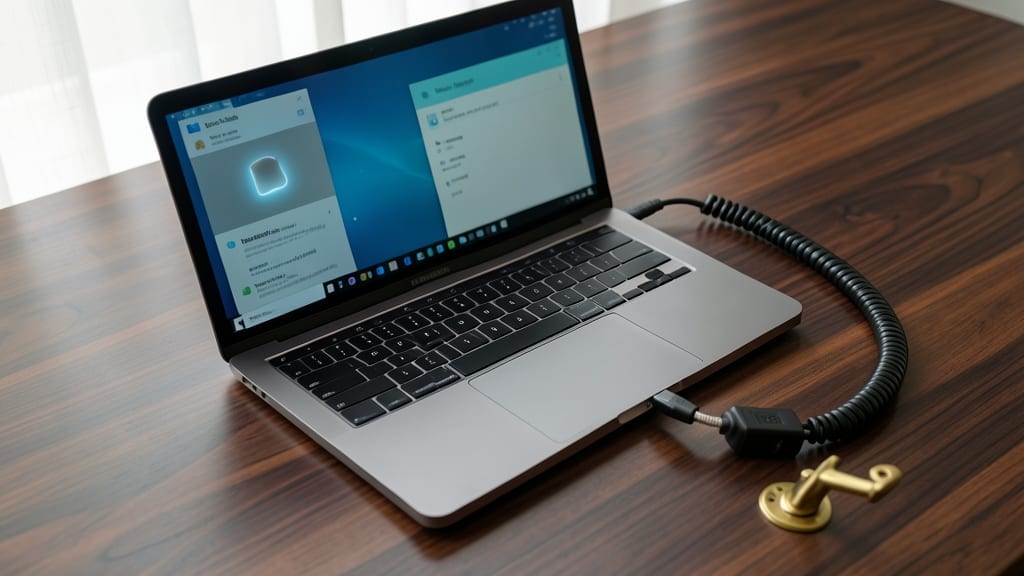
Your laptop holds sensitive work files, financial data, and personal accounts—yet it’s often left vulnerable to physical threats like theft or shoulder-surfing. A biometric lock (like Windows Hello or Mac Touch ID) ensures only you can unlock it, while a cable lock (such as Kensington’s) physically secures your device to your desk when you step away.
For extra privacy, screen privacy filters (like those from 3M) block side-angle views, making it impossible for strangers to read your screen in coffee shops or airports. These measures create a layered defense: biometrics stop unauthorized access, cable locks deter theft, and privacy filters protect against casual spying—all with minimal effort.
This setup is ideal for remote workers who frequently work in shared spaces or travel with devices. It’s the perfect complement to digital security tools like VPNs and password managers. 💻
Regular Security Audits and Log Reviews
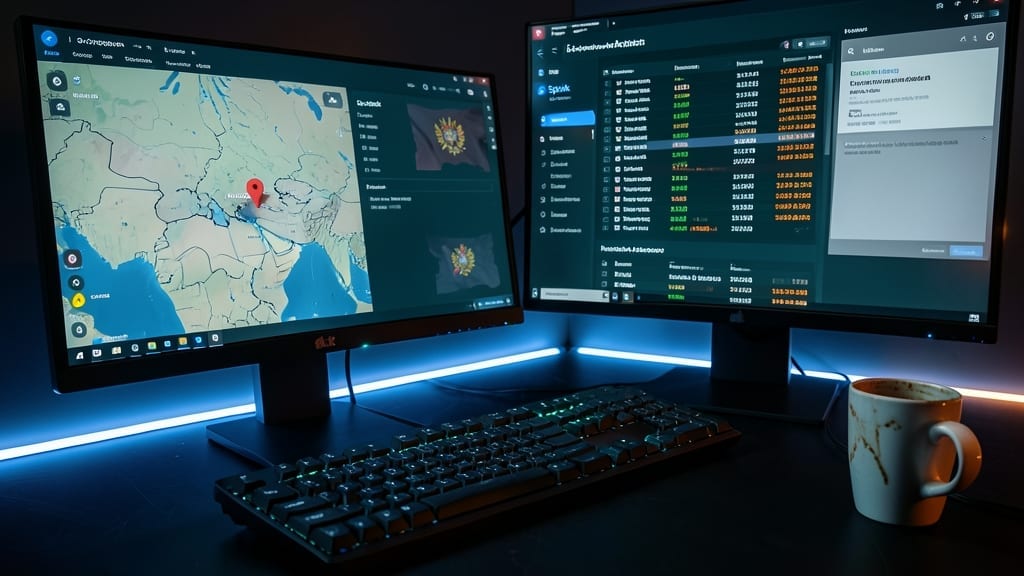
Most breaches start with small, overlooked red flags—like a login from an unfamiliar country or multiple failed password attempts. Regular security audits turn these subtle warnings into actionable alerts before they escalate into full-blown incidents.
Tools like Splunk, Wazuh, or even built-in Windows Event Viewer let you scan for suspicious activity—such as unusual access times, multiple failed logins, or unauthorized device connections. Automated log reviews can catch brute-force attacks in real time, while manual audits ensure no detail slips through the cracks.
This practice is a game-changer for freelancers handling client data or remote teams managing sensitive projects. A 10-minute weekly check could save you from a data breach nightmare. ✨

What truly drives me is witnessing that lightbulb moment when someone realizes they’re not “too old” or “too dumb” for technology.
- PowerPoint: Fix “Couldn’t Write to Microsoft Word” Errors Permanently - October 14, 2026
- How to Edit a SharePoint Site: Customize Layouts Without Coding in Minutes - October 14, 2026
- Add Family Members to Xbox Game Pass: Seamless License Sharing for Your Household - October 14, 2026